|
Workdays Countdown
|
|
Prev
|
Next
|
TimeLeft countdown can display how many working days, hours, minutes
and seconds is left till some event.
Working days do not include weekends and holidays; working hours also do not
include before/after work hours and lunch time.
Example 1:
If you want to know how many working days, hours, minutes and seconds is
left till your vacation, you can setup TimeLeft countdown to do it for you.
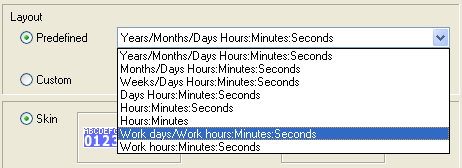
If your vacation, for example, is planned on January 17, then you need to add
a countdown till this date and select
a Work Days/Hours:Minutes:Seconds predefined layout in the Edit Countdown screen:
Save changes and this is your countdown ready:
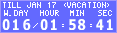
It says that you have 16 working days, 1 hour, 58 minutes and 41 seconds left
till your vacation. These days do not include any weekends and holidays.
At the same time (just to compare) you can create one more countdown that displays
how many days in total (not only working days) is left till the same event and
you'll see a totally different result:
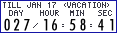
This countdown says that you have 27 days, 16 hours, 58 minutes and 41 seconds
left till your vacation. These days include working days, weekends and
holidays.
Example 2:
Lets say, you want to know how many working hours (in total), minutes and
seconds is left till the end of the working week. If your working day, for example,
is ending at 06:00 PM, then you need to add a "Weekly" countdown
(Run every Friday at 06:00 PM) and select
a Work Hours:Minutes:Seconds predefined layout in the Edit Countdown screen:
Save changes and this is your countdown ready:

It says that you have 04 working hours, 10 minutes and 47 seconds left till
Friday 06:00 PM. These hours do not include any weekend, holiday, lunch
and before/after work hours.
At the same time (just to compare) you can create one more countdown that displays
how many hours in total (not only working hours) is left till the same event
and you'll see a totally different result:

It says that you have 05 working hours, 40 minutes and 47 seconds left till
Friday 06:00 PM. These hours include weekend, holiday, lunch and before/after
work hours. Particularly in this example the difference is because of lunch
time.
This is important for TimeLeft (in order to display working days correctly)
to have correct settings for working days/weekends, work/lunch times and holidays.
All this information can be setup in TimeLeft Options.
In Options screen you can setup what days you work during the week, when your
working day starts and when it finishes, when you have lunch time and also what
holidays are celebrated in your country/province.
See also Options, Layout
Editor.
| 


