|
Right-click TimeLeft system tray menu and select Options to bring
up Options window.
General
General tab contains general TimeLeft options:
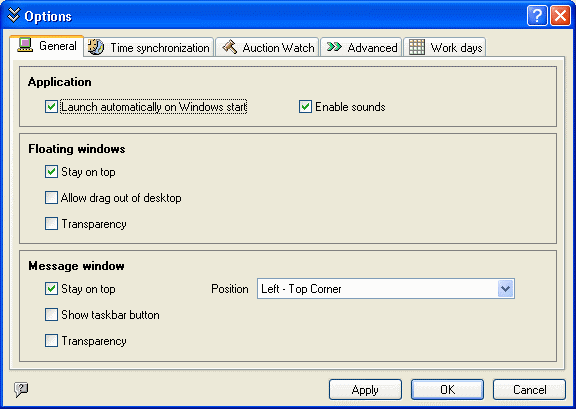
Marking Autostart checkbox enables TimeLeft to launch on Windows startup.
Enable sound checkbox is marked by default. Clear it if you want to
disable all sound effects.
Floating windows settings:
Stay on top – mark this checkbox if you want TimeLeft floating windows to
be always at the front of any other windows.
Allow drag out of desktop - mark this option if you want allow floating
windows to be moved out of desktop.
Transparency - mark this option is you want floating windows to be transparent
(Windows 2000/XP only).
Message windows settings:
Stay on top – mark this checkbox if you want TimeLeft message windows to
be always at the front of any other windows.
Show task bar button - mark this option if you all message windows to
have a taskbar button.
Transparency - mark this option is you want message windows to be transparent
(Windows 2000/XP only).
Position - use this option to define message windows default position
on the screen.
Synchronize time
Synchronize time tab contains settings for automatic time synchronization:
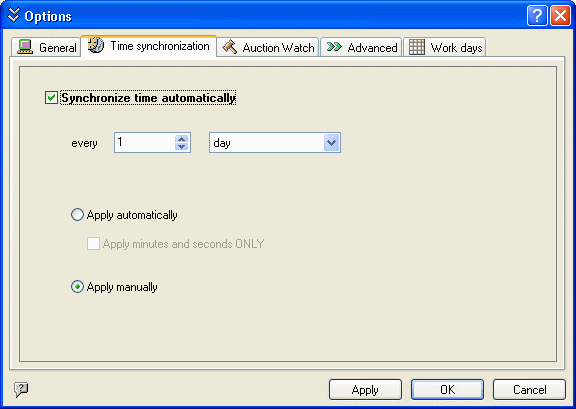
Mark Synchronize time automatically checkbox if you want TimeLeft to
connect automatically to time servers at predefined time intervals and use spin
controls and the drop-down menu below to set duration of these intervals.
Apply minutes and seconds ONLY checkbox should be used in case you notice
that the time offered by atomic servers differs from your real time by one or
several undivided hours (this may happen due to specific time zone or energy-saving
time adjustment settings on your system). Auction Watch
Auction Watch tab contains auction watch Quick Add and Autorefresh settings:
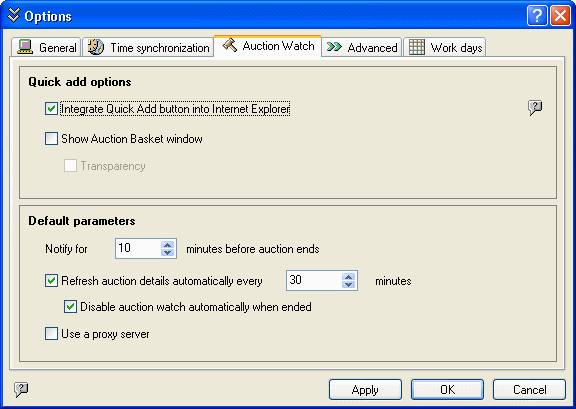
Mark Integrate Quick Add Button Into Internet Explorer option to add
Auction Quick Add button to your Internet Explorer toolbar, so you can open
auctions in your Internet Explorer and add them into TimeLeft auction list quickly
by clicking this button.
Show Auction Basket Window option: if marked then a small stay-on-top
window is displayed: this is Auction Basket. Now you can add auctions quickly by
dragging links from your browser and dropping them into the Auction Basket window.
Transparency: mark this option if you want your Auction Basket window
to be transparent.
Default parameters section:
Notify for N minutes before auction end:this information is used when
a new auction is added. Default value is 10 minutes, but it can be changed,
so you don't need to change every new auction.
Refresh Auction Automatically every N minutes: if marked, then auction
status (is it ended or not, current bid, high bidder) is loaded from the Internet
every N minutes (30 minutes by default).
Disable Auction Automatically When Ended: if the auction is ended, then
it is disabled automatically in the Auction List (see Main
Window). This option works if Refresh Auction Automatically every N minutes
is marked.
Advanced
Advanced tab contains settings that are not used often:
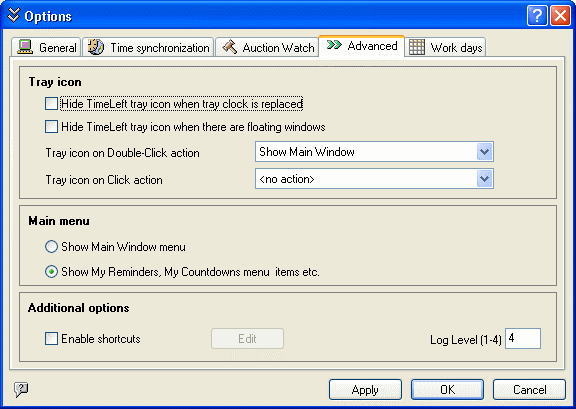
If Hide TimeLeft tray icon when tray clock is replaced is marked then
TimeLeft tray icon is hidden when Windows' tray clock is replaced by TimeLeft
skinnable clock. In this case you can access TimeLeft main menu by right-clicking
on the skinnable tray clock and selecting TimeLeft Menu item.
Hide TimeLeft tray icon when there are floating windows - if marked then
TimeLeft tray icon is hidden when any floating windows are displayed, and TimeLeft
tray icon is showing if no floating windows are displayed (if all floating windows
are minimized, for example).
Tray icon on Double-Click action– here you can define what should occur
when you double-click the TimeLeft tray icon.
Tray icon on Click action – here you can define what should occur when
you click the TimeLeft tray icon.
If Show Main Window Menu is marked then in the main TimeLeft menu
all "My.." menu items (like My Reminders, My Countdowns) are replaced
with one menu item called Main Window.
Enable shortcuts - if marked then TimeLeft shortcuts can be defined for
different actions/functions. For example: CTRL+ALT+S can be used to create stickers.
Log level - this option defines how much information about TimeLeft work
is recorded to log-files. Level 1 is the lowest level and it records the main
events only (like, for example, errors).
Work days
Work days | Work days/hours tab contains settings that are used to define working
days of week, weekends and working/lunch times for working days:
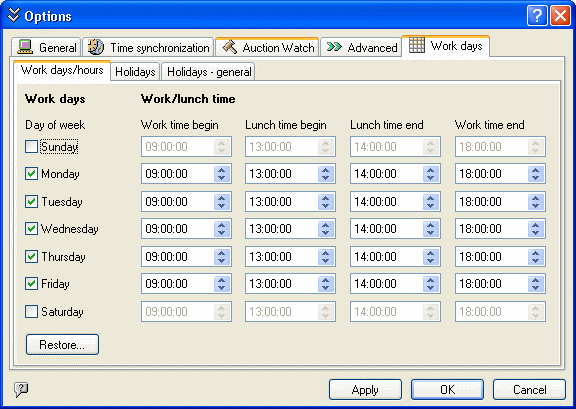
If Sunday is not selected then Sunday is a weekend (not a working day).
If Monday is selected then Monday is a working day of week.
Clicking Restore... button will reset all settings on this tab to default values.
Work days | Holidays tab contains settings that are used to define holidays
list:
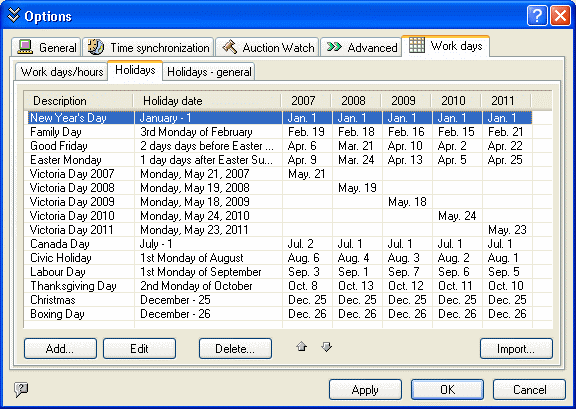
Click Add... button to add a new holiday.
Click Edit button to edit selected holiday item.
Click Delete... button to delete selected holiday item from the list.
Click Arrow up or Arrow down buttons to change holiday items order.
Click Import... button to import holidays list and settings from a default
holidays preset.
Work days | Holidays - general tab contains settings that are general for all
holidays:
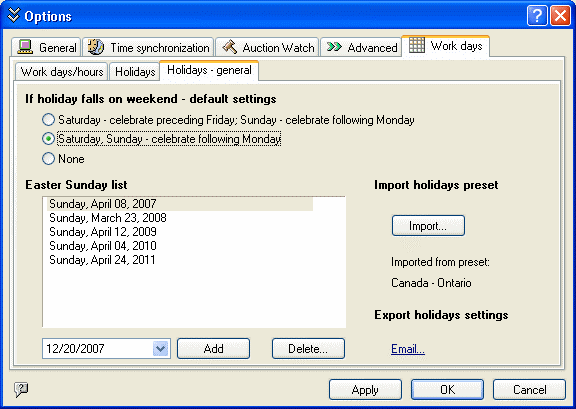
If holiday falls on weekend - default settings is used to define when
a holiday should be celebrated if it falls on weekend. This setting value is
used as a default value when a new holiday is being added, but it it can be
changed personally for each holiday.
Easter Sunday list is used to define Easter Sunday dates for different
years. These settings are used to calculate dates of Easter dependent holidays (for example,
Easter Mondays are celebrated 1 day after Easter Sundays).
Click Add... button to add a new Easter Sunday date to the list.
Click Delete... button to delete selected Easter Sunday date from the
list.
Import holidays preset
Click Import... button to import holidays list and settings from a default
holidays preset.
Export holidays settings
Email... - click this link to email your settings to NesterSoft if you
want us to add your updated holiday settings to TimeLeft holiday preset list.
| 


