|
Floating Windows
|
|
Prev
|
Next
|
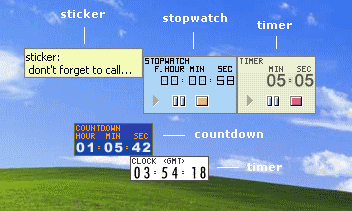
This is the general view of TimeLeft floating windows. This sample contains
countdown, clock, sticker, stopwatch and timer.
Floating windows can be displayed/hidden at any moment by double-clicking on
TimeLeft system tray icon (if Try Icon On Double-click option
is defined).
Right-clicking on a floating window brings up a context
menu.
Every instance of a countdown, clock, stopwatch, timer or sticker is a separate
floating window. You can place floating windows the way you want (as a line
or as a column, or in different corners of your desktop). And even more: floating
windows stick to each other, so you can group them and move the whole group
at once.
You can make every floating window look just how you want it to look: change
color, font or select a Winamp skin; choose a pattern of changing digits and
size. You can also set them always-on-top, make semitransparent or hide in the
system tray.
See also:
How to resize floating
windows
Layout editor
Options
| 


