|
Edit Auction Watch
|
|
Prev
|
Next
|
If you want to edit an existing auction watch, right-click TimeLeft system
tray icon and select in the pop-up menu Tools|Auction Time Watch menu
item to bring up the main TimeLeft window. In this window select an auction
you want to customize and click Edit button at the bottom of the window.
This will bring up Auction Settings window.
Auction Settings window contains Auction and Countdown tabs:
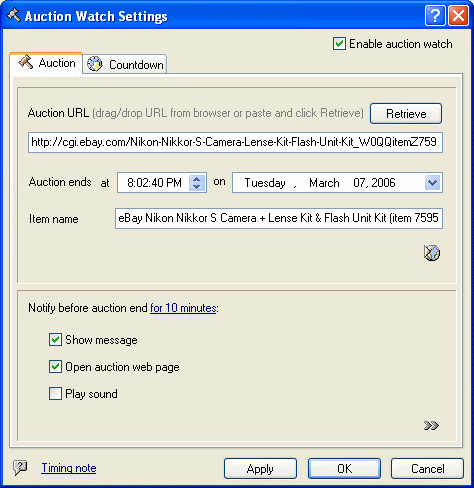
Auction tab contains all the information about the auction: date and
time when auction ends, item name and auction link.
It also contains:
"Notify before" settings: notify before auction end before for 10
minutes, show message, open auction web-page, play sound. If you want to change
10 minutes to some other value, click "for 10 minutes" ink and change
the value in the opened window.
Automatic auction parsing. You can enter all auction information manually, but
it is much more convenient to use the automatic parsing functionality:
- just drag the auction URL from the browser and drop it into Auction URL field.
In this case the auction title (which is displayed at the very top of your browser)
is parsed and Auction Ends At, Item Name and URL fields are filled automatically.
So, TimeLeft does not need to connect to the Internet, but the following information
is not downloaded: High Bid and High Bidder.
- if you clcik Retrieve button, you can retrieve the complete information about
the auction: when auction ends, Item Name, URL, High Bid and High Bidder. TimeLeft
connects to the Internet in this case.
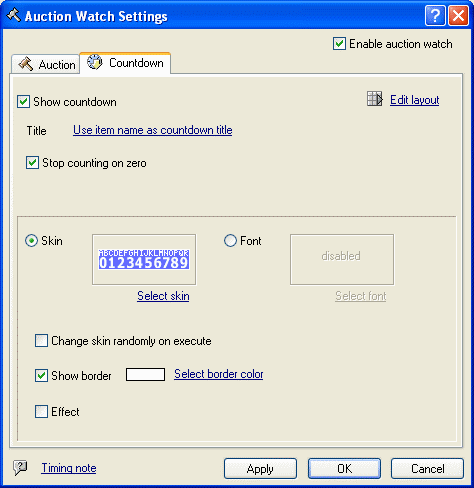
Countdown tab window lets you customize appearance and behavior of the
countdown floating window. If you have some important auction and you want to
see at any moment how long is left till the end, you can activate countdown
for the auction by marking Show Countdown option. Countdown is a small floating
window that lives on your desktop and displays how long is left till the event:
Advanced tab is used to change default auction settings. To access
Advanced tab click  button
on the Auction tab. button
on the Auction tab.
All functionality of this tab is almost like in the case of reminders (see
Edit Reminder for more details).
It is not recommended to change these settings if you are not 100% sure.
See Edit Reminder for more details.
| 


