|
If you want to edit an existing timer, right-click TimeLeft system tray
icon and select in the pop-up menu My Timers menu item to bring up the
main TimeLeft window. In this window select a timer you want to customize and
click Edit button at the bottom of the window.
This will bring up Timer Settings window.
Hint: there are two other ways to bring up Timer Settings window:
- Right-click the floating window and select Edit Timer
- Or just double-click a timer panel.
This is Timer Settings window view:
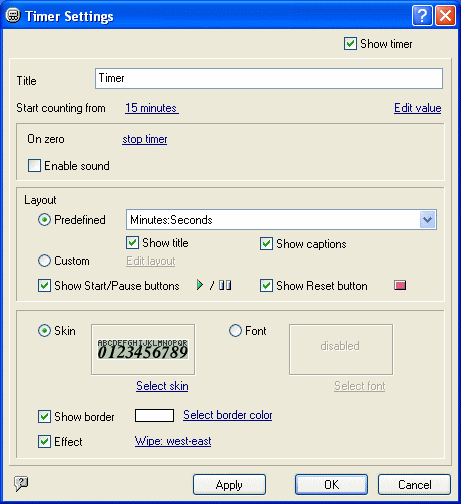
If you want to enable the timer, mark Show Timer checkbox in the right-hand
top corner of the window.
Use Title field to edit timer title. If you have several timers it will
be convenient to have an individual title for each of them.
To change start value for a timer use Start counting from section.
On zero: timer can stop counting on zero or restart counting or continue
counting as a stopwatch (increasing).
Every time when timer reaches zero it can Play sound.
If you need to change timer value, use Edit value link. For example,
if the timer displays 15:35 and you want it to display 10:00, just go to Edit
value link and change the timer value there.
To select countdown Skin or Font select Skin or Font radio button.
Show border checkbox displays/hides
floating window border.
Effect option lets you select the transition effect for figures in floating
window.
Layout.
You can program your timer to show Minutes and Seconds only or Months and Days.
To change timer layout select a predefined layout set from the Predefined
drop-down list. If you want to hide (or show) timer title or timer captions
(hour, min, sec etc.), unmark Show Title or Show Captions
checkbox.
In the case, if you need to define layout that is not in the Predefined layout
list, define Custom layout: click Edit layout link to customize
timer layout the way you want.
Using Show Start/Pause buttons and Show Reset button checkboxes
you can define if any of timer buttons should be shown or hidden.
| 


