|
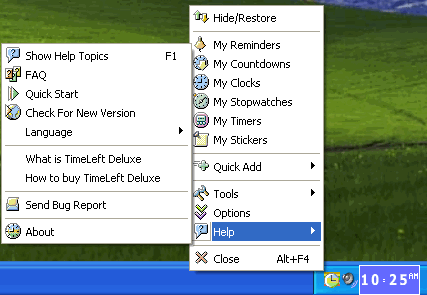
This is the TimeLeft main menu. To access Main Menu just right-click TimeLeft
tray icon.
Menu items description:
Hide/Restore - hides/restores Floating
Windows.
My Reminders - access to TimeLeft reminder list. Reminder list is located
in the Main Window. By default, you can access
Main Window by double-clicking TimeLeft tray icon).
My Countdowns - access to TimeLeft countdown list. Countdown list is
located in the Main Window.
My Clocks - access to TimeLeft clock list. Clock list is located in the
Main Window.
My Stopwatches - access to TimeLeft stopwatch list. Stopwatch list is
located in the Main Window.
My Timers - access to TimeLeft timer list. Timer list is located in the
Main Window.
My Stickers - access to TimeLeft sticker list. Sticker list is located
in the Main Window.
Quick Add menu group: from the Quick Add menu you can add reminders,
countdowns, clocks, stopwatches, timers and stickers. Also you can open Quick
Task window.
Tools menu group contains Auction Time Watch,
Countdown Web Export and Time
Synchronization menu items.
Options - access to TimeLeft Options window.
Help:
1. Show Help Topics - access to TimeLeft Help
2. FAQ - Frequently asked questions
3. Quick start - online quick start instructions
4. Check For New Version - online check for a new TimeLeft version
5 .Send Bug Report - if there are any problems using TimeLeft send us
a bug report using Send Bug Report menu item
6. About - contains information about TimeLeft version, license and NesterSoft
contact information
Close - closes TimeLeft
Countdown menu
To access Countdown Menu right-click a Countdown floating window:
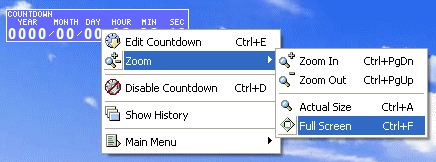
It is convenient to use the Countdown Menu if you want to access Countdown
settings or Main Menu quickly.
Edit Countdown - access to the Countdown
Settings window, where you can define all countdown settings
Zoom - use it to resize countdown window size (see more about zoom)
1. Zoom In - use it to enlarge countdown window size
2. Zoom Out - use it to decrease countdown window size
3. Actual Size - restores the actual countdown window size
4. Full Screen - use it to set countdown window size to the screen size
(press Esc to get back to the previous Countdown window size)
Disable Countdown - disables and hides Countdown
Show History - here you can check the history: how the countdown was
executed
Main Menu - access to Main Menu (see above)
Clock, Stopwatch, Timer and Sticker menu
To access Clock, Stopwatch, Timer or Sticker Menu just right-click a floating
window.
Clock, Stopwatch, Timer or Sticker Menu contain menu items that help you with
quick access to Clock, Stopwatch, Timer or Sticker settings and to the Main
Menu.
| 


