| |
Folders and Paths
Understanding where TimeLeft keeps it's files, transferring TimeLeft data to another computer, deploying TimeLeft manually, etc.
1. Files locations
There are 2 sets of TimeLeft files:
1. Program files (main executable files - one set per computer)
2. Data files (settings and options files - *.INI, temporary and log files - for each user).
Program files by default are installed into Program Files\TimeLeft folder (CSIDL_PROGRAM_FILES).
Data files are stored:
- for Windows 95/98/ME/NT and below - into Program files folder as well;
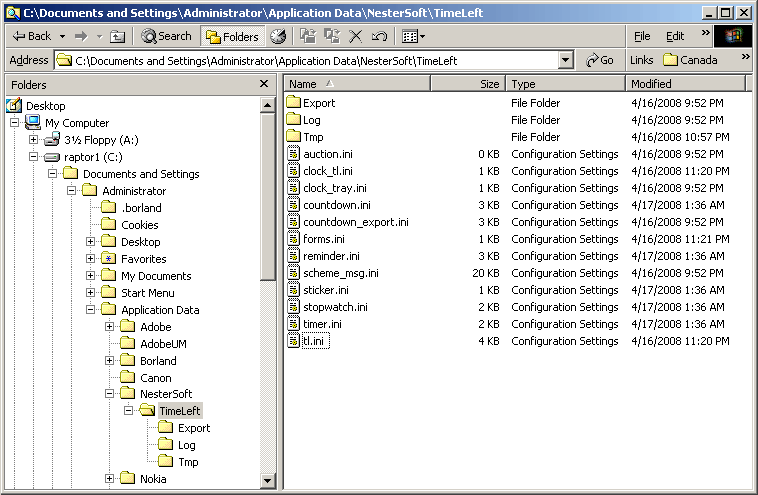
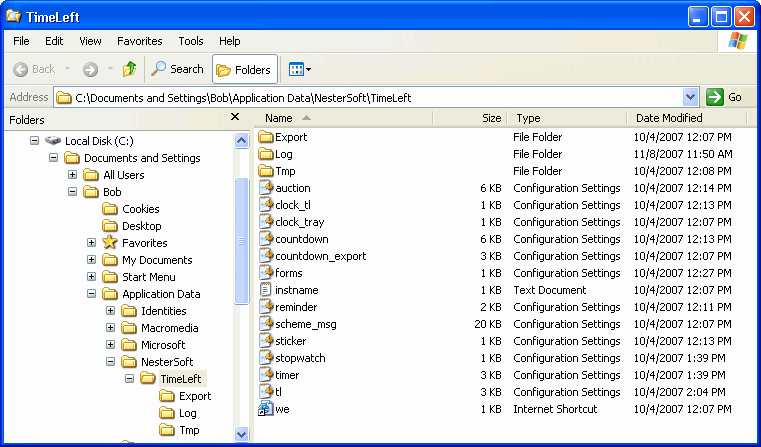
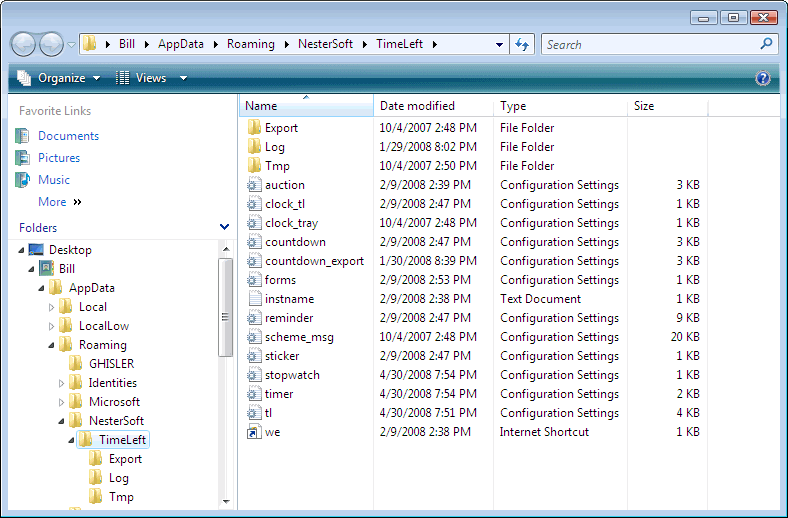
- for Windows 2000/XP/Vista and above - into Current User Application Data\NesterSoft\TimeLeft folder (CSIDL_APPDATA).
TimeLeft default files location for different Windows versions:
| Windows |
TimeLeft Program files |
TimeLeft Data files |
| 95,98,ME,NT |
C:\Program Files\TimeLeft |
C:\Program Files\TimeLeft |
| 2000, 2003, XP |
C:\Program Files\TimeLeft |
C:\Documents and Settings\<USERNAME>\Application Data\NesterSoft\TimeLeft |
| Vista |
C:\Program Files\TimeLeft |
C:\Users\<USERNAME>\AppData\Roaming\NesterSoft\TimeLeft |
Data files location can be overridden by starting TimeLeft with the command line parameter -datafolder <new folder>.
E.g. timeleft.exe -datafolder c:\tl_data starts TimeLeft and uses c:\tl_data folder instead of default location.
<new folder> can be equal to (or contain) $APPPATH$ - this variable will be replaced with the timeleft.exe folder. This is useful when using TimeLeft from the flash drive which can have different letters assigned.
E.g. TimeLeft\timeleft.exe -datafolder $APPPATH$ starts
TimeLeft and uses current timeleft\ folder instead of default location
2. Data files folder structure:
| *.ini |
settings files (tl.ini, reminder.ini, countdown.ini, stopwatch.ini, etc) |
| Log\ |
log files folder |
| Export\ |
countdown web-export folder |
INI files are necessary for the TimeLeft operation. Rest of the folders can be emptied or archived/removed.
Windows 2000:
Windows XP:
Windows Vista:
2. Manual moving or deploying TimeLeft
To transfer all TimeLeft settings to another computer:
1. Install TimeLeft Deluxe and apply your license key.
2. Copy settings from the old computer: Move all INI files (located in the Data folder) into corresponding location on the new computer.
To manually copy TimeLeft to another computer(s) preserving all current settings - copy TimeLeft Program and Data folders into corresponding paths. TimeLeft doesn't use Windows registry.
You can place TimeLeft Program files in any folder, not necessary in the C:\Program Files\TimeLeft
If you want to place TimeLeft Data files in non-default location - use -datafolder command line parameter for running TimeLeft.
|
|
|
|
| TimeLeft Free |

TimeLeft FREE never expires!
|
| TimeLeft Deluxe |
Get even more features!

|
|